
Learn how to use headless mode for your tests and why it’s so important. Understand when you should use it and see an example of headless testing with WebdriverIO.
Browser automation has been around for a long time. It is an important part of how we develop, test, and deploy web applications. Browser automation can be done on a headed browser and also headless browsers. A headless browser operates as you would expect a normal browser would, however, it does not have a Graphical User Interface (GUI). Therefore when you are running tests you will not see the browser GUI pop up and the actions being carried out. Interactions with a headless browser are done via the Command Line Interface.
Before the headless mode Chrome release in 2017, in order to run your automated tests headlessly, you had to use browsers such as PhantomJS (now discontinued). Over time browser vendors included a headless browsing mode as a part of their releases. This started with Google Chrome 59 in 2017 and Firefox following with headless mode available on all their platforms starting with Firefox version 56. Headless Chrome quickly overtook PhantomJS upon its release.
There are many uses of headless browsers by a wide range of individuals.
As test automation engineers we can gain the following benefits from doing headless testing:
Headless browsers have a lot of benefits, however, there are some things to consider when using headless browsers:
Different testing frameworks such as Selenium, Cypress, and WebdriverIO have commands that allow you to execute your scripts in headless browsers. In WebdriverIO you can execute your tests in the following way.
Let us quickly set up a demo WebriverIO project.
In your code editor (I use VSCode) create a new project.
Initialize npm and install WebdriverIO with the following steps:
npm init wdio .

Select the following options from the configuration helper
=========================
WDIO Configuration Helper
=========================

Where is your automation backend located? On my local machine
Which framework do you want to use? mocha
Do you want to use a compiler? No!
Where are your test specs located? ./test/specs/**/*.js
Do you want WebdriverIO to autogenerate some test files? Yes
Do you want to use page objects (https://martinfowler.com/bliki/PageObject.html)? Yes
Where are your page objects located? ./test/pageobjects/**/*.js
Which reporter do you want to use? spec
Do you want to add a service to your test setup? selenium-standalone
What is the base url? http://localhost
Do you want me to run `npm install` Yes
To start the test, run: $ npm run wdio
This will execute tests in a headed Chrome browser.
Let us now set up the project to run headlessly.
wdio.conf.js file go to the capabilities section of the configurations and add: 'goog:chromeOptions': {
args:'headless',
},
'wdio:devtoolsOptions':{
            headless: true
        },
npm run wdio and they should run with a headless browserwdio.conf.js file go to the capabilities section of the configurations and change browserName to Firefox "moz:firefoxOptions": {
args: ['-headless']
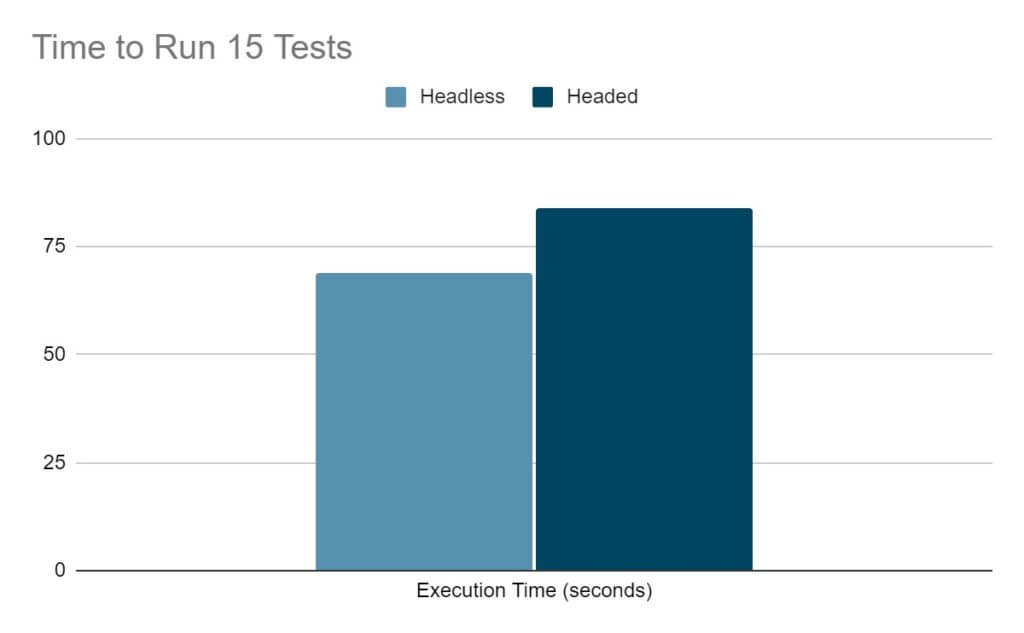
},npm run wdio and they should run with a headless browser on FirefoxHere’s an example that demonstrates the potential speed difference between executing your tests in a headless browser vs a headed browser. I ran this test suite of 15 tests headed and headless (each having a max instance of 1) and the overall completion time was 18% faster from just that one change. The headed tests took 1 minute and 24 seconds to run and the headless tests ran in 1 minute and 9 seconds:
Headless Browsers offers many benefits and can be used to aid your test automation. You can start your browsers headlessly from the command line and also use it in your various test automation frameworks. You can check out Cypress, Selenium Webdriver , Puppeteer among others.