
Nowadays companies are investing a lot of money into QA efforts to increase the quality of the software products being released. However, the traditional QA method is not only time-consuming and ineffective but also often disappointing in its results. This triggers inefficiency, additional expenses, and ultimately, higher risk for delivering the end product with visual or functional issues. The pressure to release frequently and stay ahead of the competition can lead to insufficient testing resulting in bugs and other issues that negatively affect the user experience.
Today’s users require software that has functional capabilities, better graphics and is easier to use. To meet these expectations, a lot of testing needs to be done for the application’s visuals and user interface. This is because as the software development life cycle progresses the testing teams are put under pressure as development teams release products faster.
In this blog, we will explore the challenges of testing modern applications and how these challenges can be addressed by utilizing the AI-powered testing tool, Applitools Autonomous.
You will see detailed examples of how Applitools Autnonmous addresses different types of testing like functional, visual, and API testing.
Below are some of the challenges we often face while testing modern applications.
Too Many Scenarios
Modern applications are highly complex, with hundreds of end-to-end scenarios that need to be tested across a vast array of screens, devices, and browsers.
Too Many Screens & Devices
In modern applications, users access digital content on a wide variety of devices, browsers, and screen sizes, each with its own unique characteristics. Manually verifying that an application looks and functions correctly across all these environments is nearly impossible without automated assistance. Traditional testing methods cannot scale to meet this demand, often resulting in inconsistent user experiences and missed visual bugs.
Constant UI Changes
In dynamic development environments, user interfaces (UIs) are constantly evolving. Even minor changes to the UI can require updates to test scripts. This constant maintenance burden can slow down the development process and lead to outdated or ineffective tests.
Different Skill Sets
Teams often consist of members with varying technical skills, leading to the use of different tools and approaches to testing. This creates silos within the organization, where engineers and non-technical testers might not collaborate effectively. So far we have seen the challenges in testing modern applications.
Applitools Autonomous, powered by Applitools’ proven Visual AI, offers a game-changing solution that allows teams to automate and streamline testing across various dimensions. In this blog, we’ll explore the types of testing you can perform using Applitools Autonomous and how it simplifies the testing process.
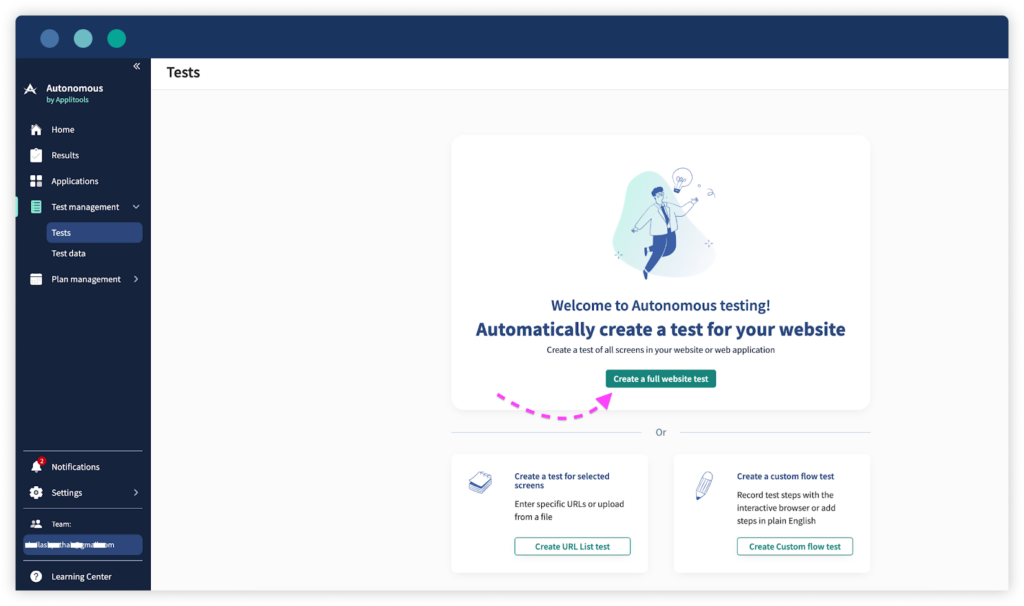
One of the key features of Applitools Autonomous is its ability to conduct a Full Website Test with minimal effort. Simply by entering your website’s URL, Autonomous crawls the sitemap and automatically creates a test suite covering every web application page.
With just a URL input, Applitools Autonomous handles the heavy lifting of testing, giving teams complete coverage across all environments.
If you don’t need to test your entire website, or if you want to focus on specific pages, Applitools offers URL List Testing. This allows you to upload a list of important URLs that you want to validate across different browsers and devices.
This method gives you granular control over which parts of your web application are tested, ensuring the most important areas receive detailed attention.
For complex workflows, Applitools Autonomous offers Custom Flow Testing, which allows you to simulate end-user actions across your site. For example, you can test user journeys like logging in, adding items to a cart, and checking out — with every action captured step by step.
Custom Flow Testing is ideal for complex, multi-step processes, such as eCommerce workflows or user registration flows.
Cross-browser testing can be a significant bottleneck in the development process, but Applitools Autonomous eliminates this pain point. It replicates browsers in seconds, cutting down the time required for Cross-Browser and Device Testing by up to 90%.
By reducing the time spent on browser replication, teams can focus on identifying and resolving any browser-specific issues faster.
Applitools Autonomous doesn’t just stop at visual testing—it also enables API Testing. You can initiate HTTP requests directly in your tests, manage application states, and store responses for use in later test steps.
API Testing combined with visual validation ensures that your web app’s functionality works correctly and efficiently across the board.
In the below section, you will see the different types of testing you can perform using Applitools Autonomous.
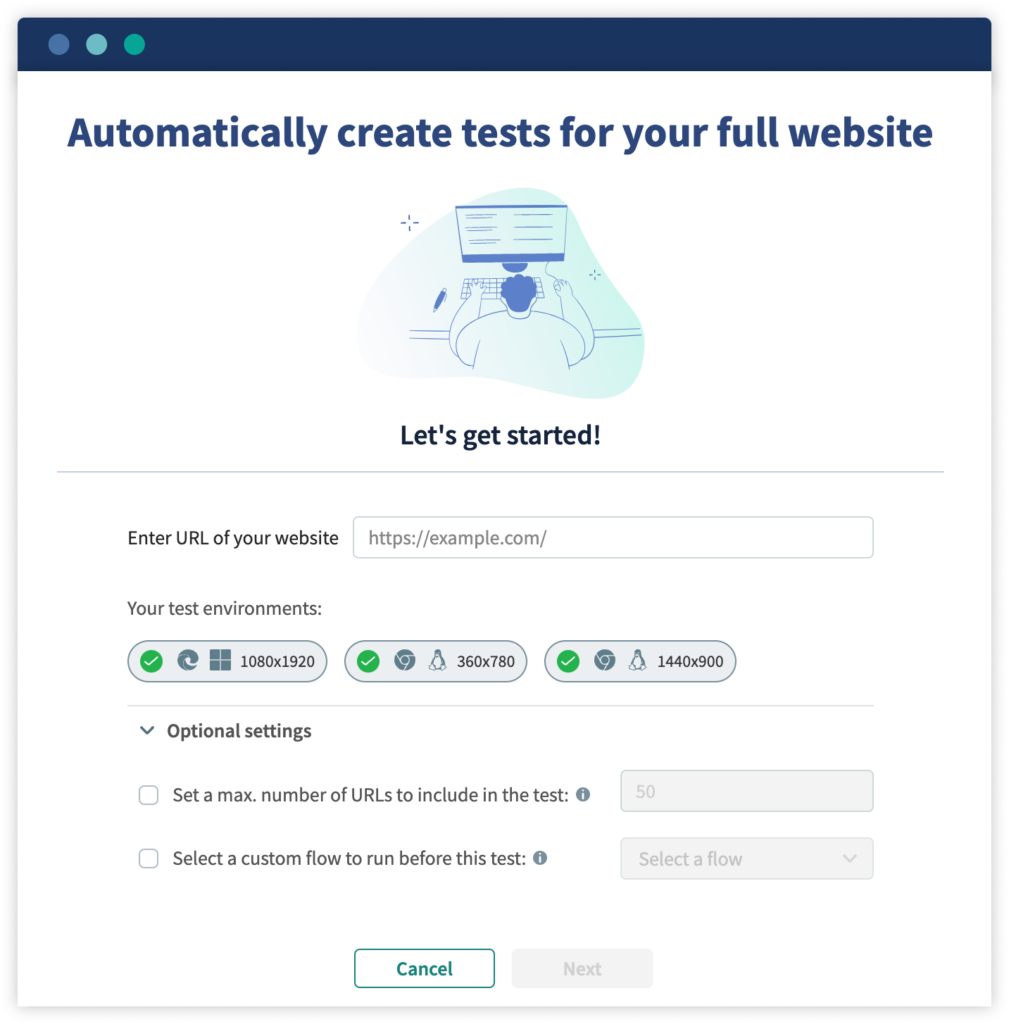
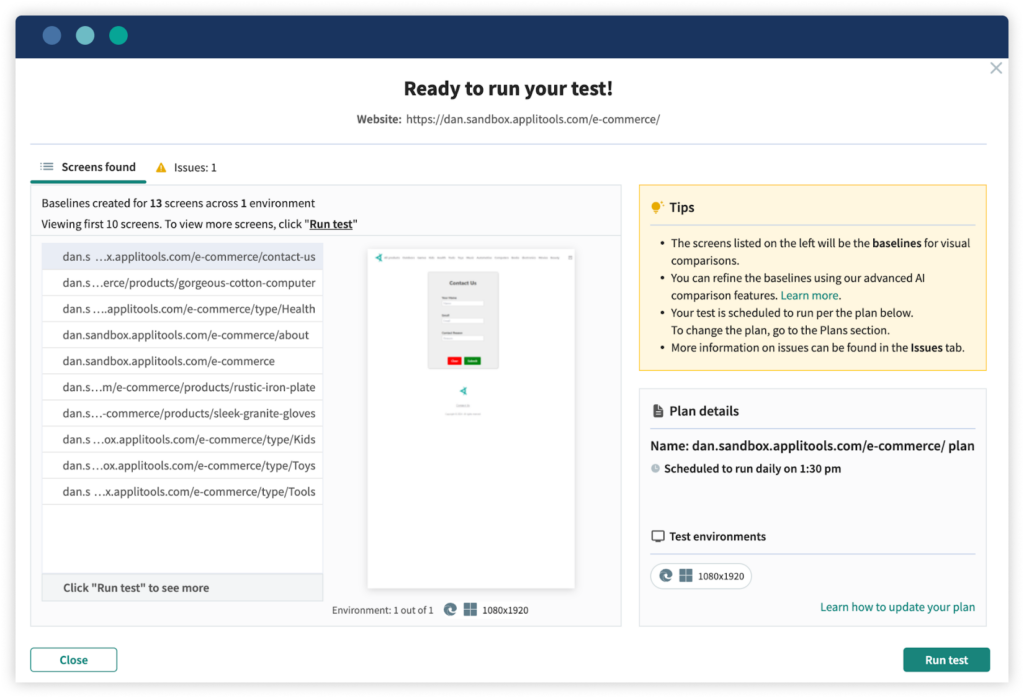
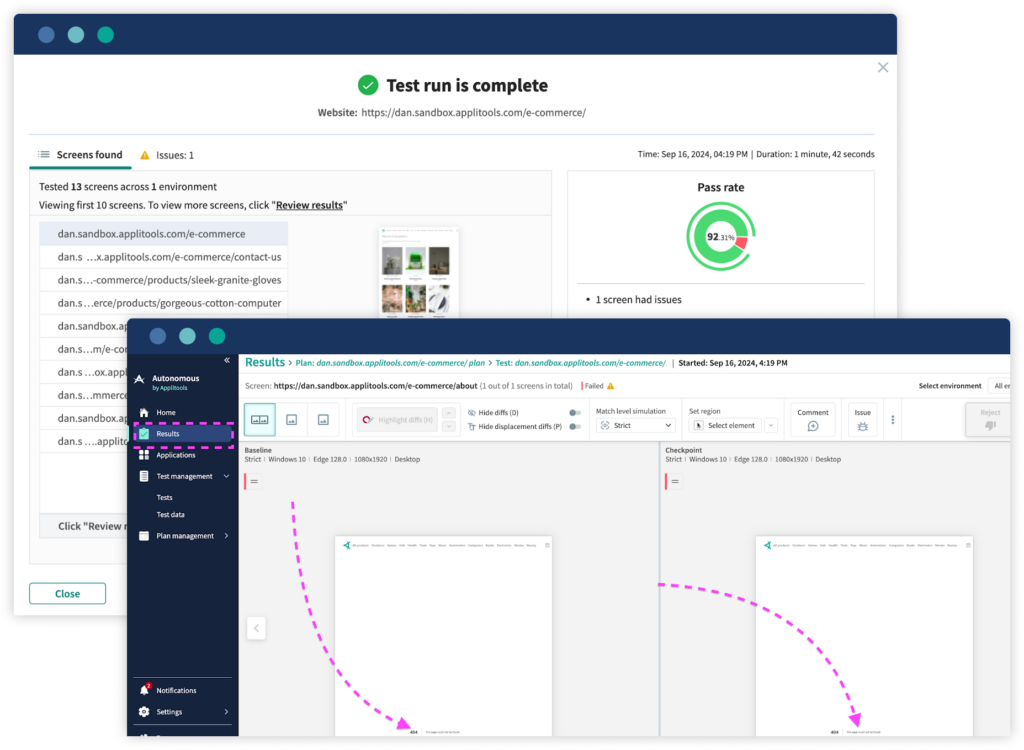
In full website testing, users provide the URL they want to scan and specify the test environments where they want to execute the scan. Additionally, users can set optional settings such as a maximum number of URLs and select a custom flow to run before the test. Once these steps are completed, the website is ready to be scanned.
For example, let’s look at the site https://dan.sandbox.applitools.com/e-commerce.
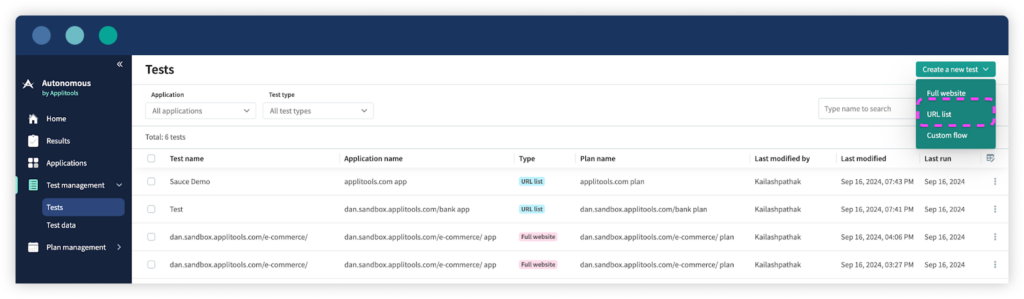
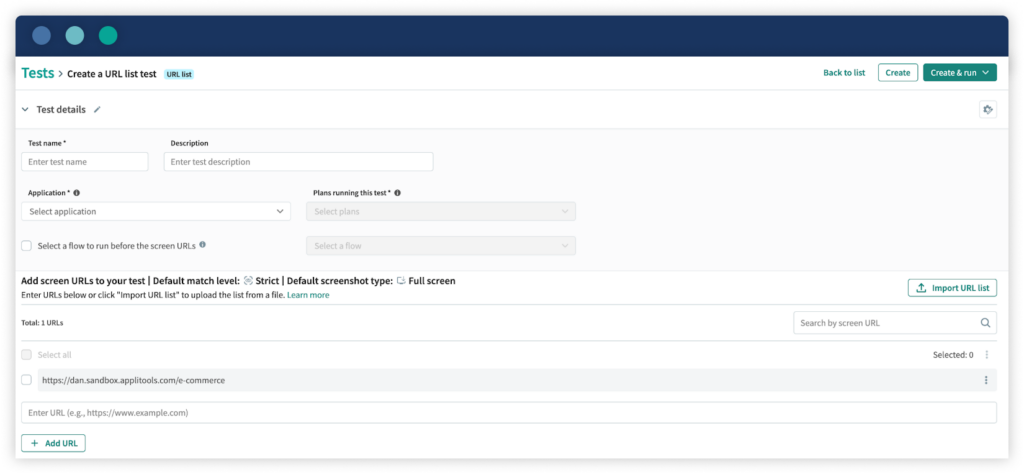
A URL list test allows users to create a list of URLs with combinations that will be used for testing. This is especially useful when you have no sitemap, want to crawl specific URLs in your domain, or need to crawl URLs of other domains too.
While setting up your URL list test you should create a file with the URL to be tested and check if all of them are properly loaded. The list should be in CSV, XLS, TXT, or a sitemap .xml file format. The sitemap .xml should only contain the URLs you are going to test—not all URLs on your site.
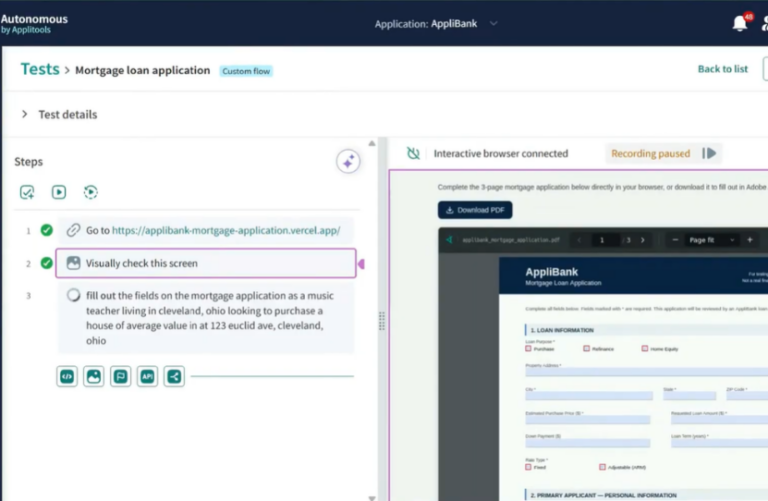
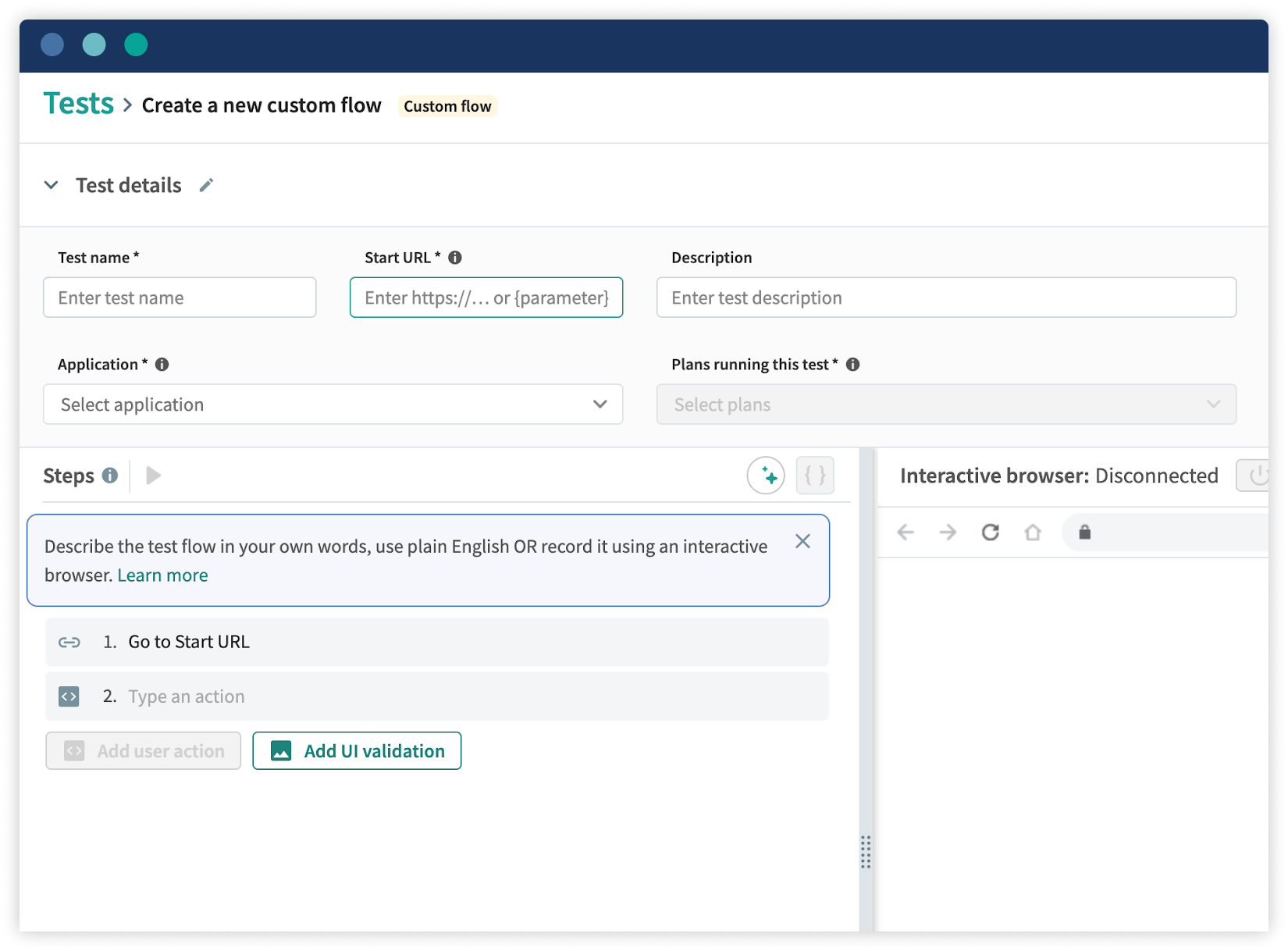
The Autonomous Applitools Custom Flow Test is an intelligent and streamlined way to automate end-to-end testing of specific workflows on a website. This feature enables testers to design a sequence of actions or user scenarios, for instance, login, adding items to a shopping cart, and navigating to a checkout page while at the same time, every action is recorded for evaluation purposes.
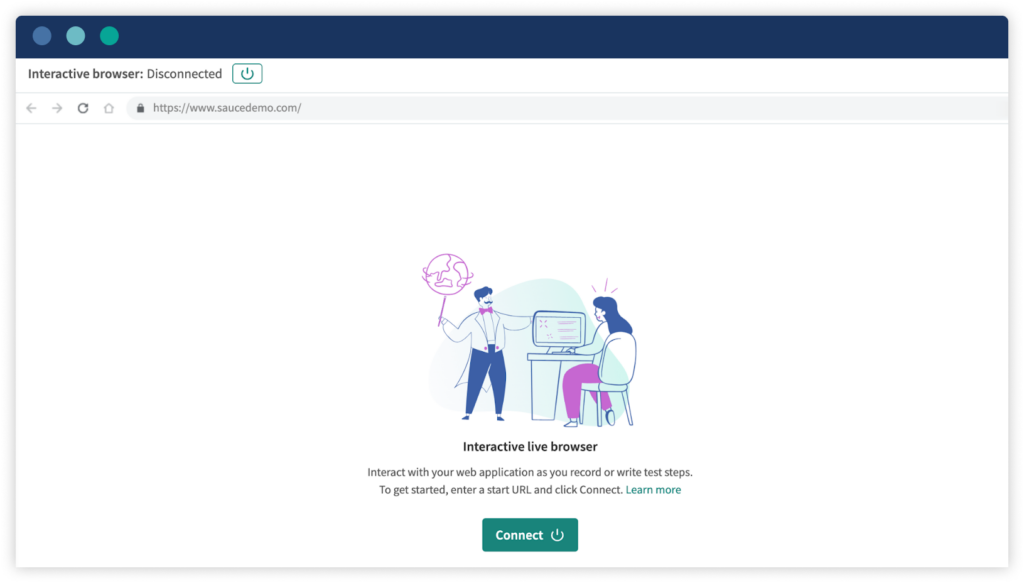
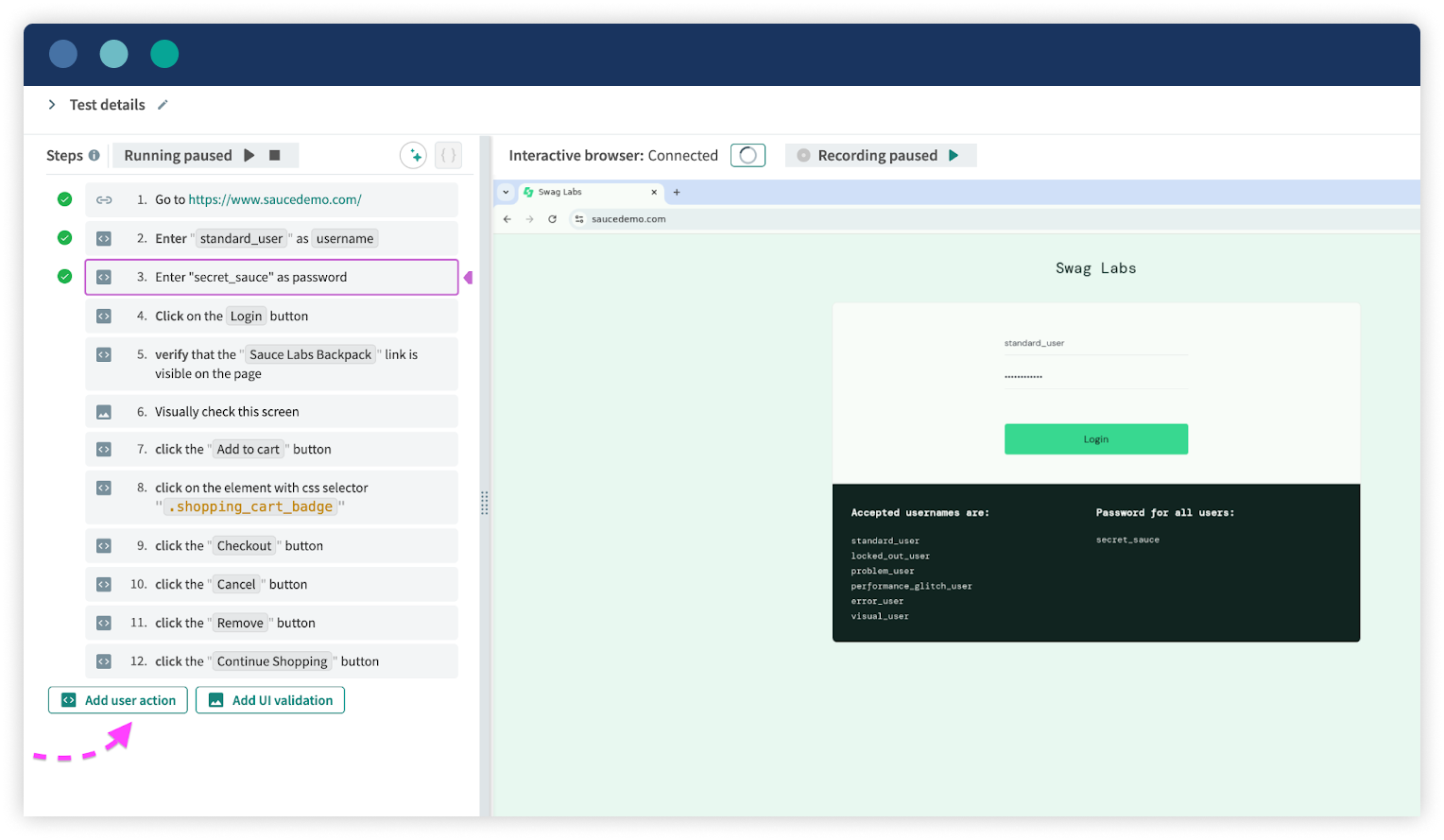
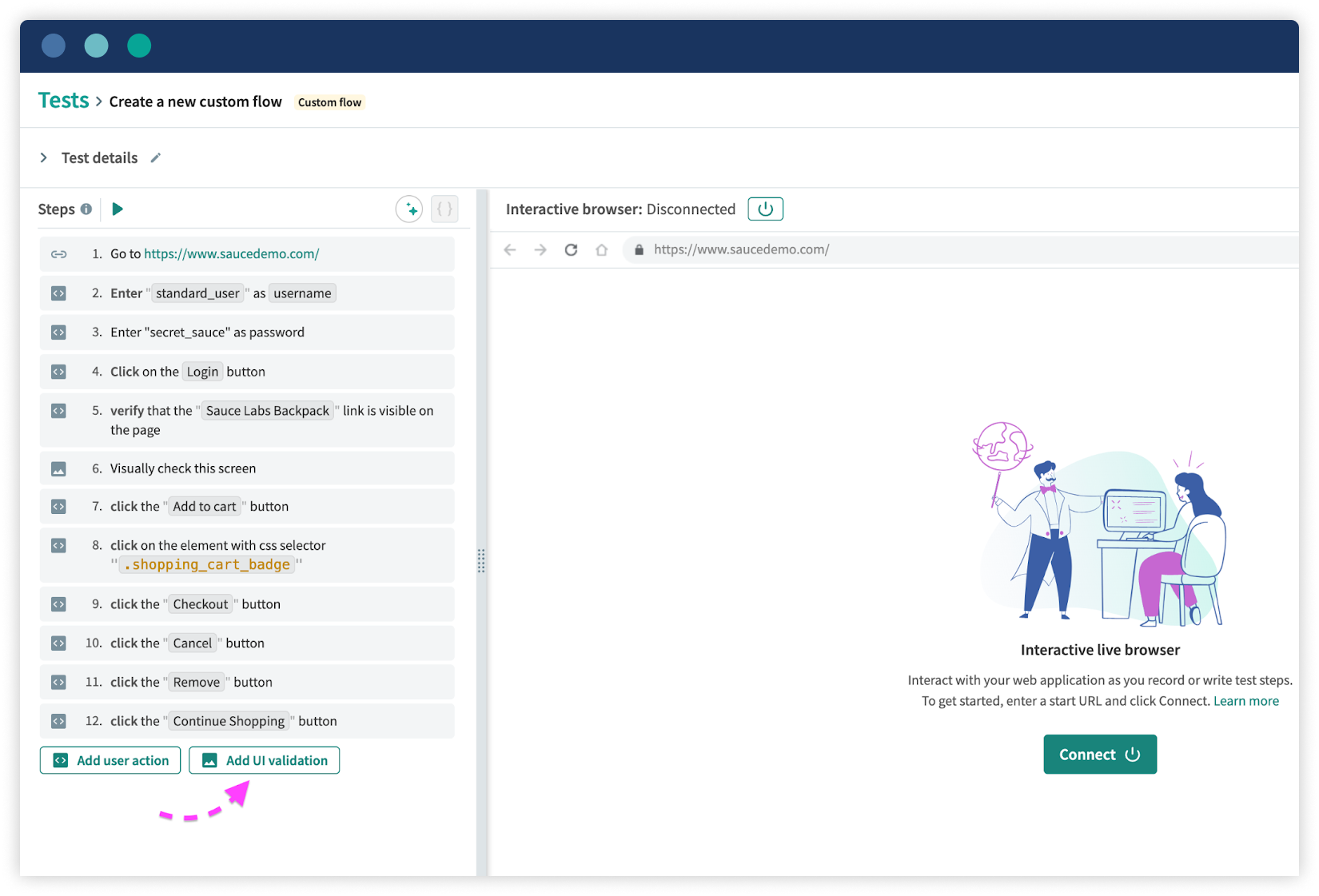
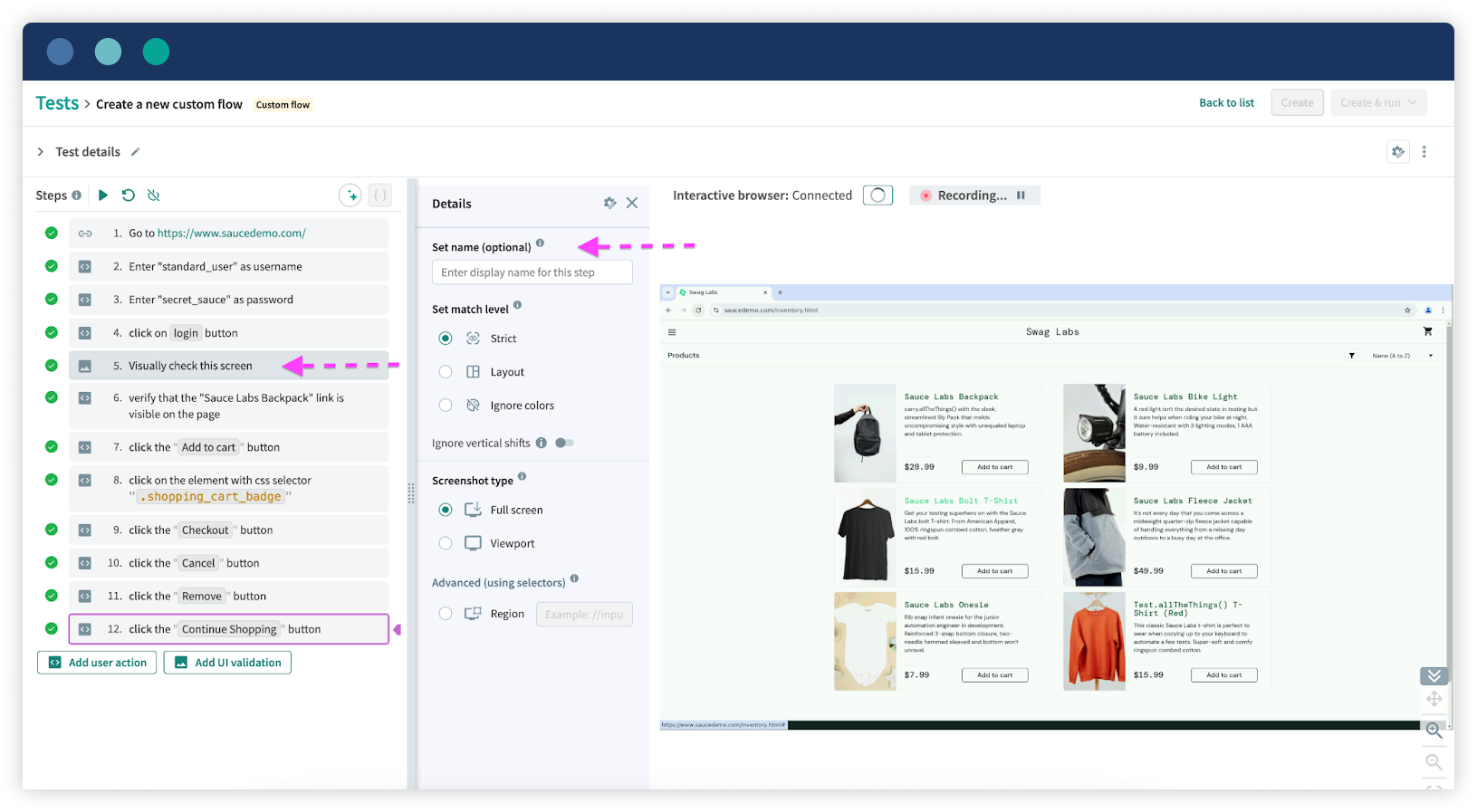
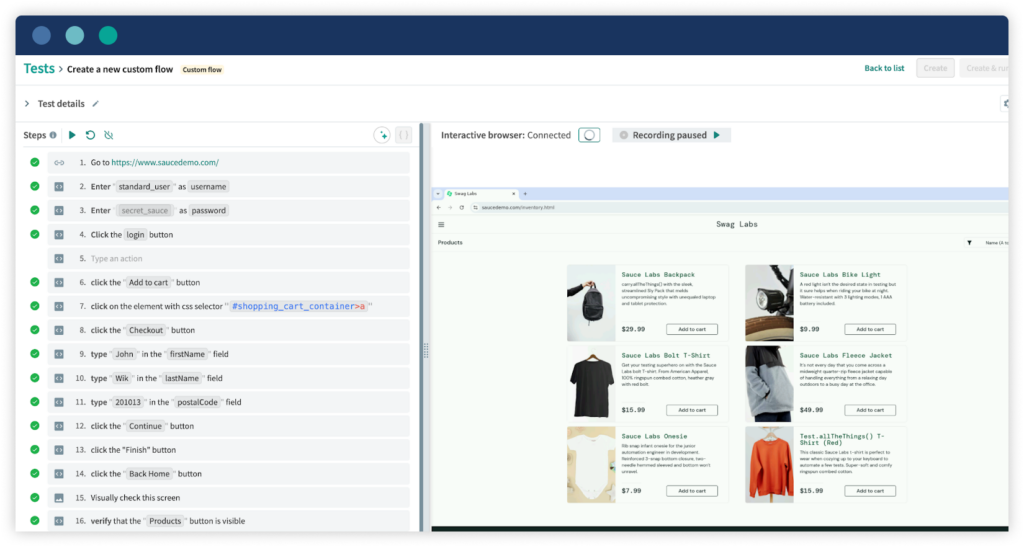
Let’s take the example of https://www.saucedemo.com/ where a user may perform the actions below.
For the given use case, we have two options to write the test script:
Both approaches can be utilized based on the specific requirement or convenience. In the screenshot below you can see the above use case is recorded.
Debug or Modify a Test
In the screenshot below you can see we can perform various actions by clicking on any existing action. The user has clicked on an action (likely Step 7, clicking a button with a CSS selector) that reveals a dropdown menu providing options such as: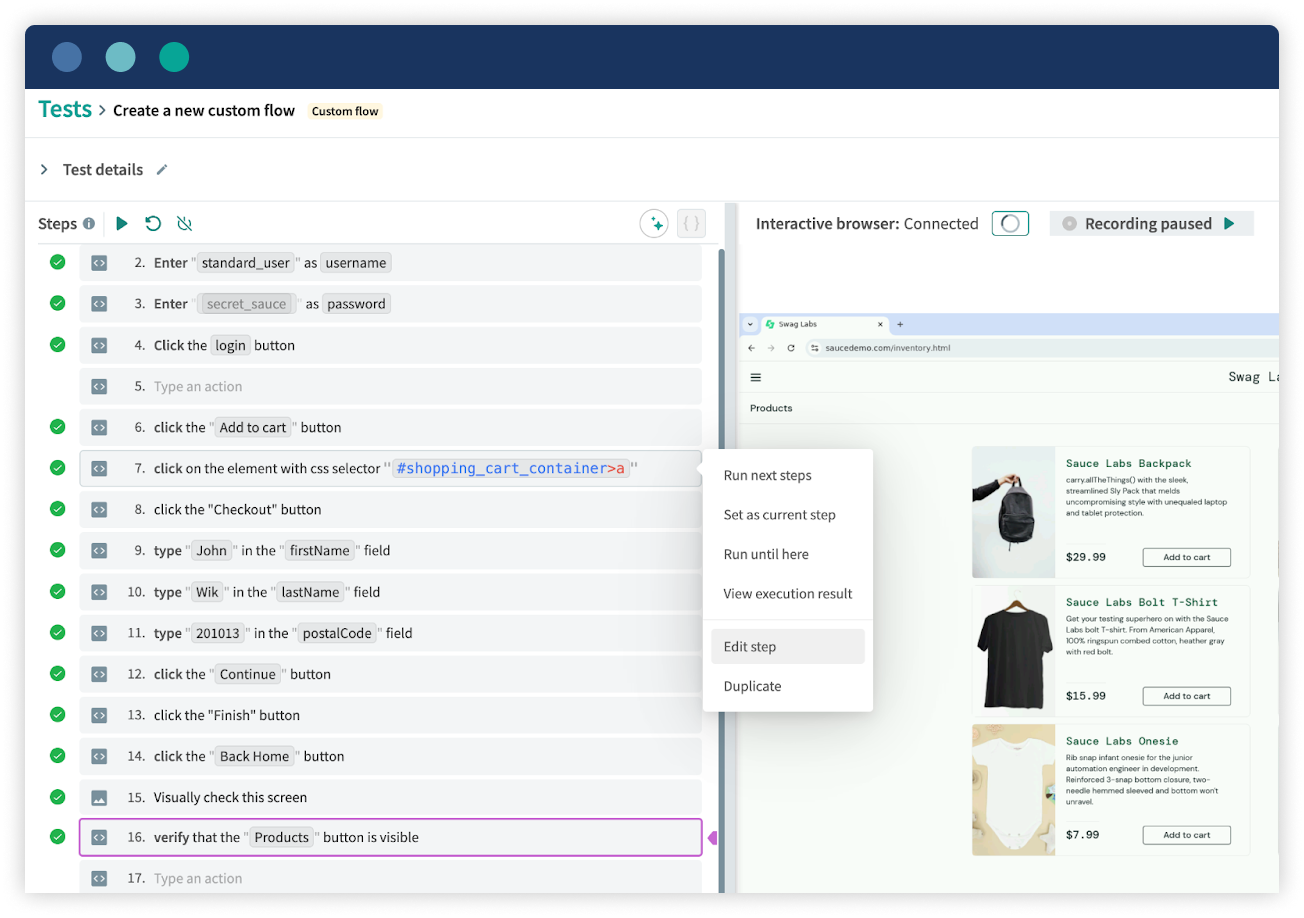
Previewing Test Steps in the Interactive Browser
This approach saves time during the test construction process because it enables previewing of the test steps as one proceeds with the development of the test script in an interactive browser.
When in an interactive browser running a test there is an option where you get to see the screen as it was before each step was performed and after.
How to Preview a Test Step
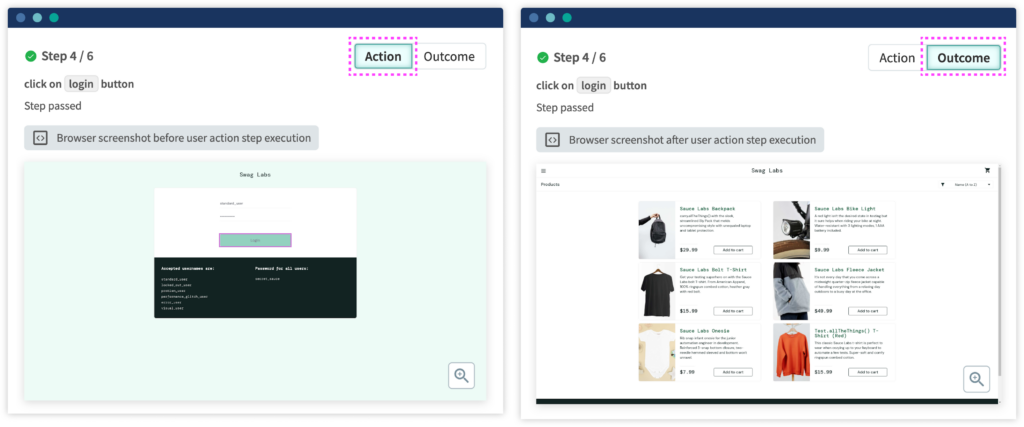
Place the mouse pointer over an icon before one or several particular test steps, and you will be provided with a thumbnail of the screen. For a more detailed view of the screen, navigate to the icon on the toolbar to open the full-size picture preview.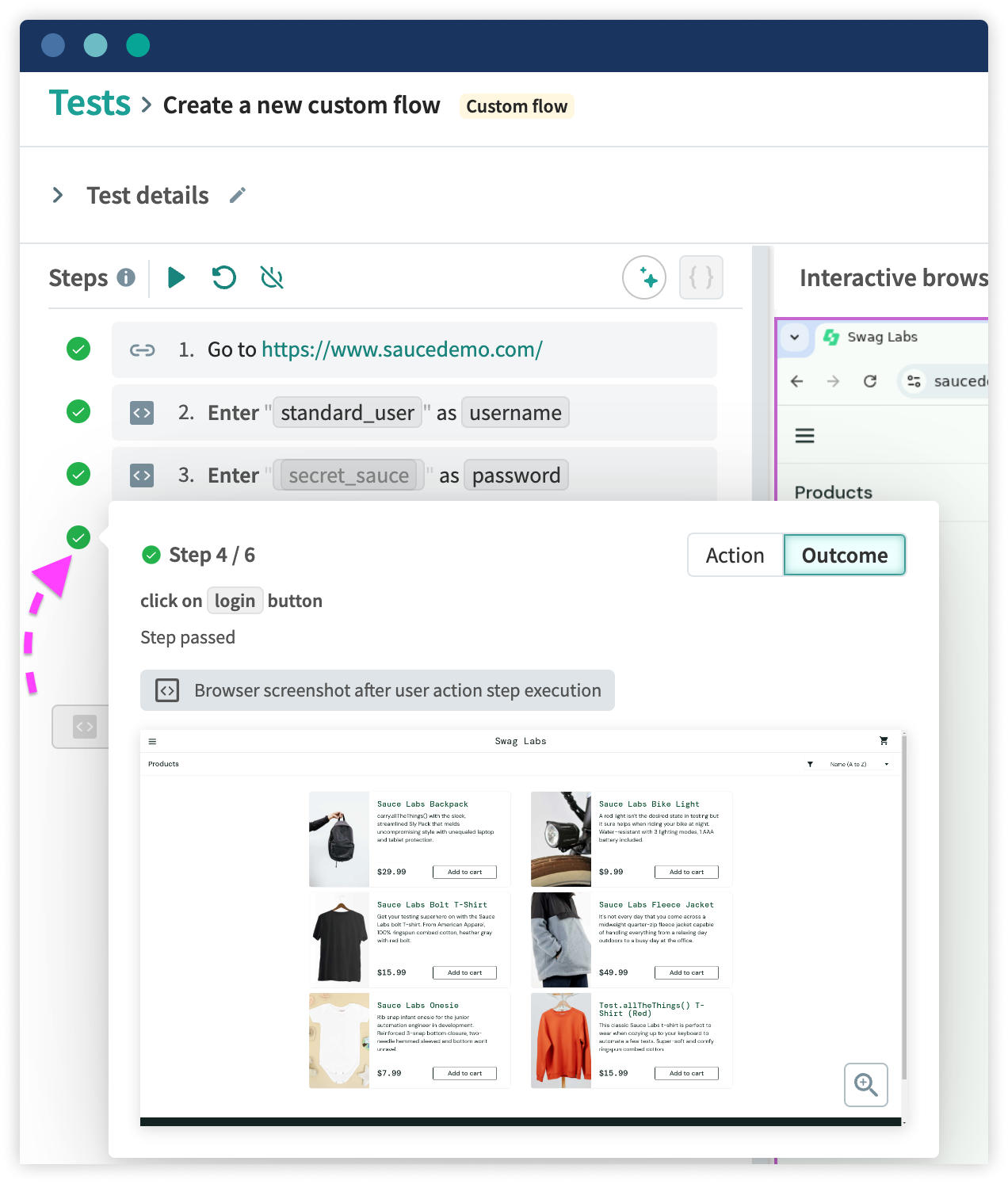
On the top of the preview window, you can find information such as the step number, command run, and its status—pass or fail.
Use the icons behind the worksample Click on Action to see the screen before the step and Outcome to see the screen after the step. When viewing the action window the element clicked on during the step is highlighted in pink.
Running the Test from the Start
To start the test from the first step you can just press the “Run” button or “Rerun test from start” which is above the list of the steps.
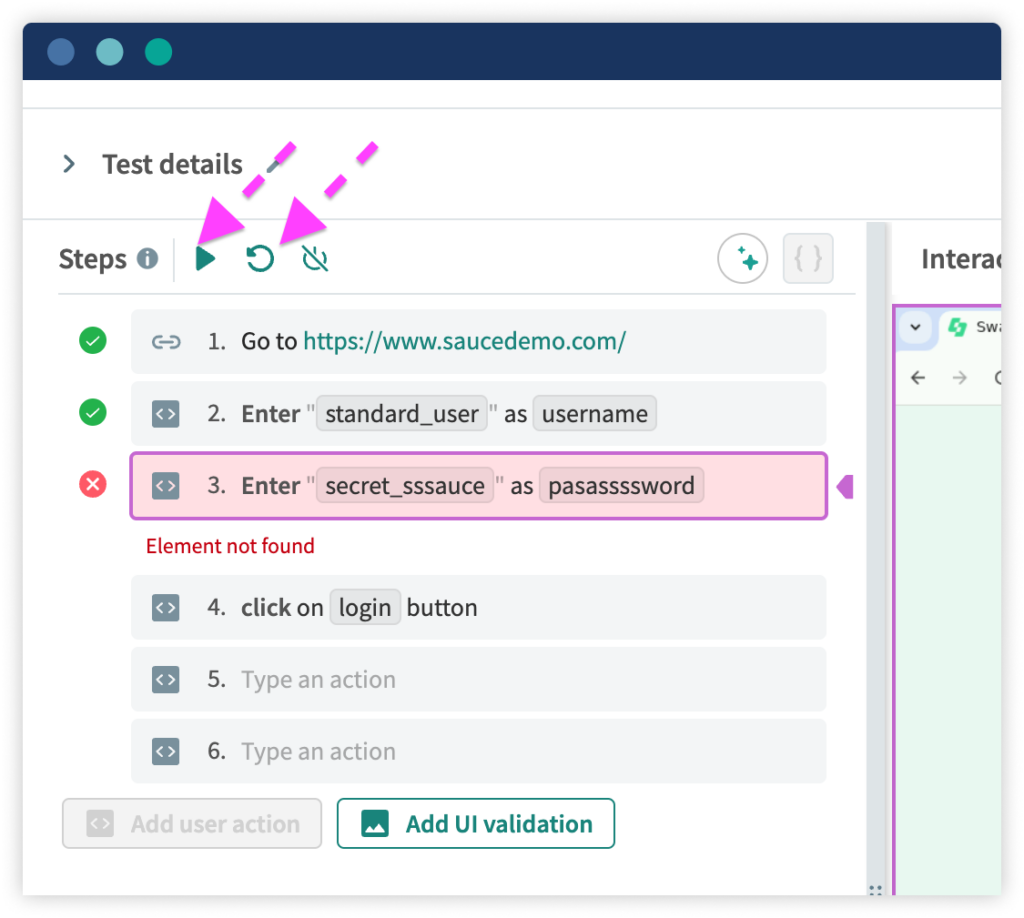
Once started, Autonomous will go through each step one by one while taking a screenshot of the application at every step. If the browser is not already connected, then the Run will also create the connection before the test is carried out. This way it can be ensured all the steps are performed correctly and also shows the status of a particular step.
During the test, you can pause or stop it at any time by clicking the Pause or Stop buttons.
Applitools Autonomous is not limited to functional and visual testing. It can also be used for API automation. Supporting all CRUD operations, it allows you to execute standard HTTP actions like GET, POST, PUT, and DELETE in your tests. This adds versatility to its API testing capabilities.
Autonomous also enables you to validate test operations that cannot be confirmed via the UI, such as verifying form submissions through backend records. Additionally, it ensures backend APIs expose the correct endpoints, function as expected, and return proper responses, headers, and cookies.
For GET requests let’s take an example of https://gorest.co.in/
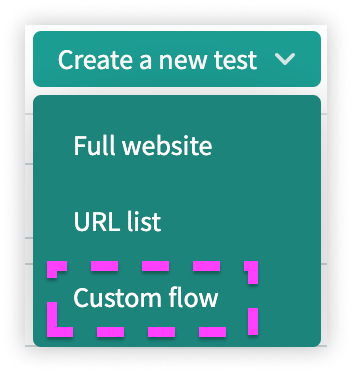
Navigate to Test Management: In the navigation bar, go to Test Management > Tests. Click on Create a new test and select the Custom Flow from the dropdown.
Use Case 1: API Response With Positive Validation
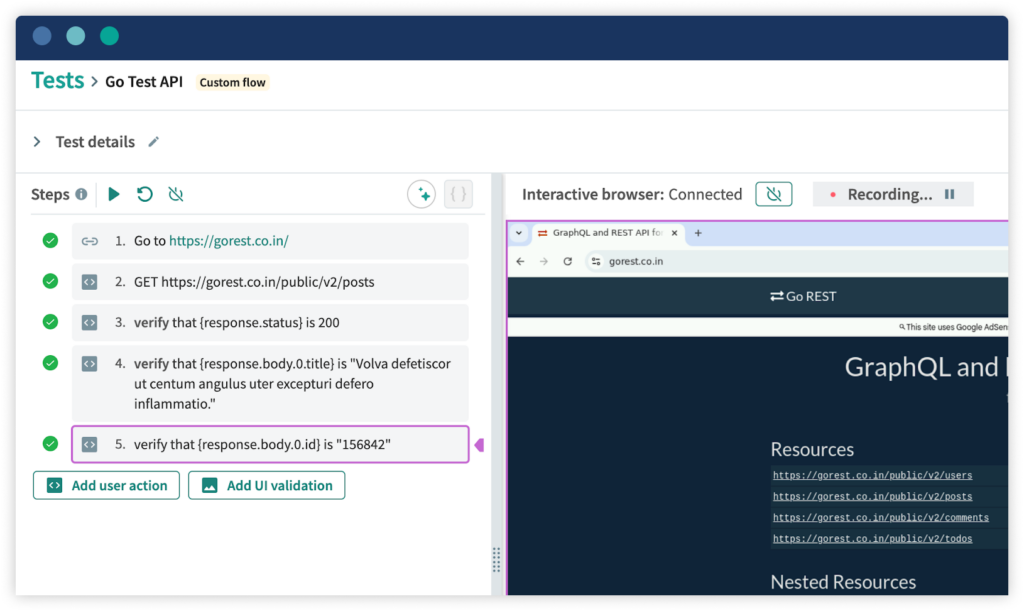
Objective: Hit the API endpoint and verify the following:
In the screenshot below you can see all the above validations have passed.
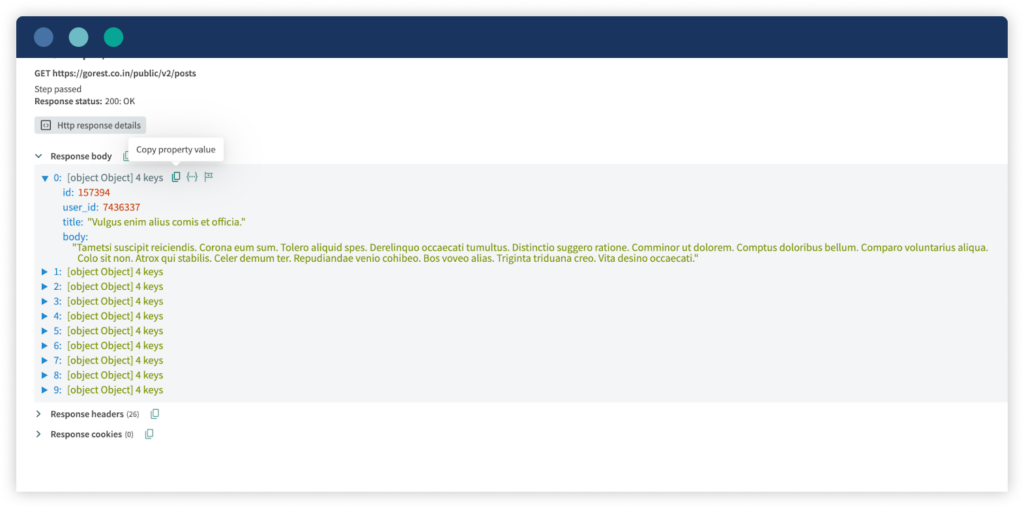
You can then hover over a response value to view options to copy the following information to the clipboard:
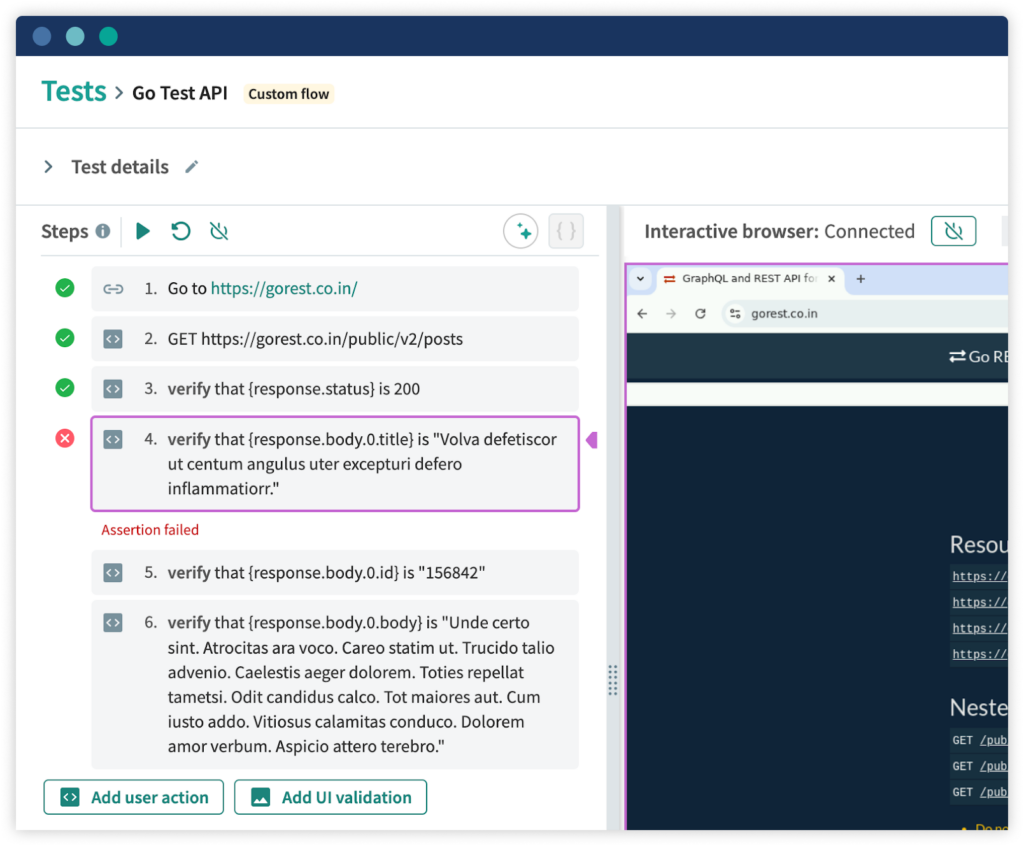
Use Case 2: API Response With Negative Validation
Objective: Hit the API endpoint and verify the following:
In the screenshot below you can see title validation is failing when we are verifying the title of the first object.
For POST requests let’s take an example of the site https://reqres.in/api/users
Use Case 1: API Response With Creating User
Objective: Hit the API endpoint https://reqres.in/api/users
{
“name”: “morpheus”,
“job”: “leader”
}
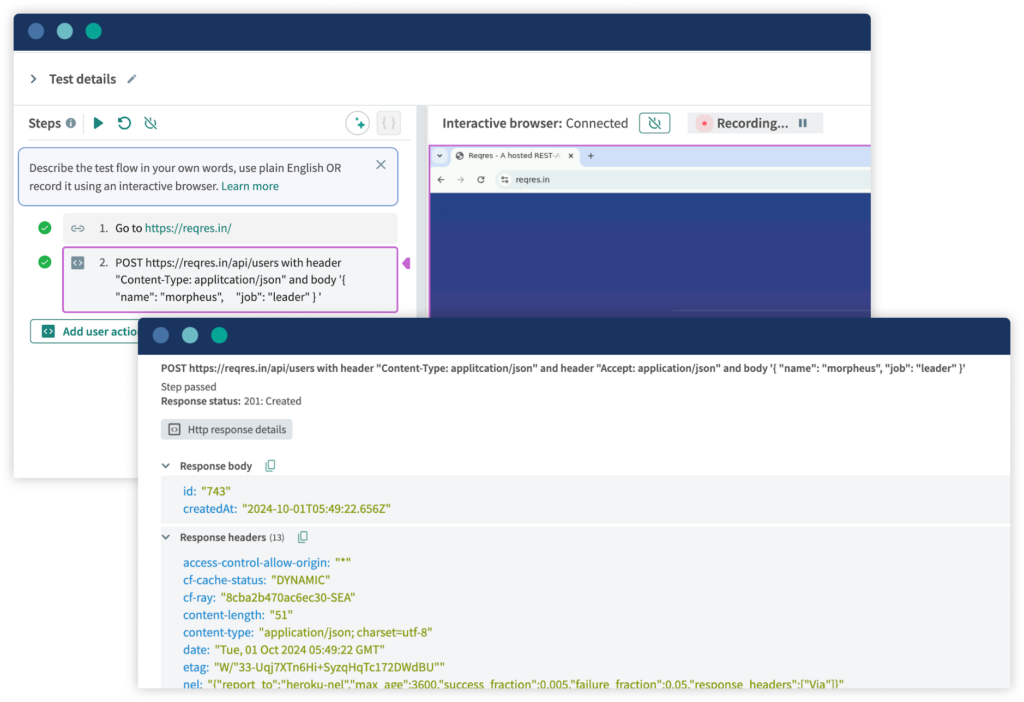
POST https://reqres.in/api/users with header “Content-Type: applitcation/json” and header “Accept: application/json” and body ‘{ “name”: “morpheus”, “job”: “leader” }’
In the screenshot below you can see test case is passed and a new record is created with the status “201”.
Use Case 2: API Response With Registering User – successful
Objective: Hit the API endpoint https://reqres.inhttps//reqres.in/api/register
{
“email”: “eve.holt@reqres.in”,
“password”: “pistol”
}
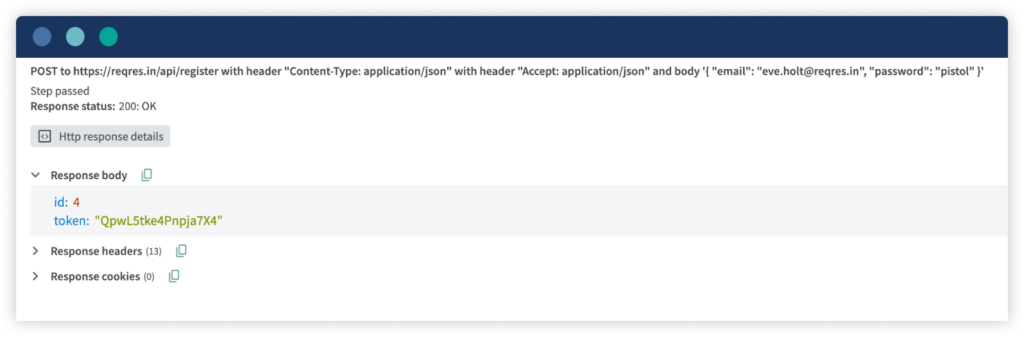
POST to https://reqres.in/api/register with header “Content-Type: application/json” and body ‘{ “email”: “eve.holt@reqres.in”, “password”: “pistol” }’
In the rapidly evolving software industry, companies are pouring resources into quality assurance to ensure smooth product launches. However, traditional QA methods are often too slow, costly, and ineffective, which can lead to bugs, poor user experiences, and product defects.
However, AI-powered tools like Applitools Autonomous offer a powerful solution to these challenges. By automating functional, visual, and API testing, Applitools enhances testing efficiency and effectiveness, ensuring higher-quality releases while reducing the risks of user dissatisfaction.
About the Author
Kailash Pathak (Applitools Ambassador | Cypress Ambassador)
Senior QA Lead Manager with over 15 years of experience in QA engineering and automation. Kailash holds certifications including PMI-ACP®, ITIL®, PRINCE2 Practitioner®, ISTQB, and AWS (CFL).
As an active speaker and workshop conductor, Kailash shares his expertise through blogs on platforms like Medium, Dzone, LambdaTest, Talent500, The Test Tribe, and his personal site https://qaautomationlabs.com/