Give Your Optimizely Devs (and Agents) Visual Guardrails to Prevent Bugs. Save your spot for the Oct. 29th webinar

Give Your Optimizely Devs (and Agents) Visual Guardrails to Prevent Bugs. Save your spot for the Oct. 29th webinar
Contrast Advisor uses Visual AI to measure the contrast ratio of text, images, icons, and UI components, then flags anything below the WCAG threshold you set, including native mobile screens that don't have a DOM to scan.
DOM-based tools can only check text elements. Visual AI measures the contrast ratio of images, icons, and UI components too.
Contrast Advisor runs inside your existing Eyes checkpoints. Enable it and review results in the same dashboard, no new test to write.
Native mobile screens don't expose a DOM. Visual AI measures contrast the same way regardless of what's underneath the pixels.
Text and non-text elements
Contrast Advisor identifies each element's type, text or image, and measures the contrast ratio between its foreground and background: the same check WCAG defines for graphics and UI components, not just text.
Choose your standard
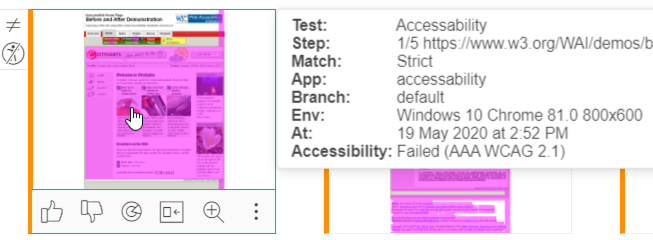
Set the WCAG version (2.0 or 2.1) and level (AA or AAA) per test, and Contrast Advisor measures against that exact threshold.
Native mobile included
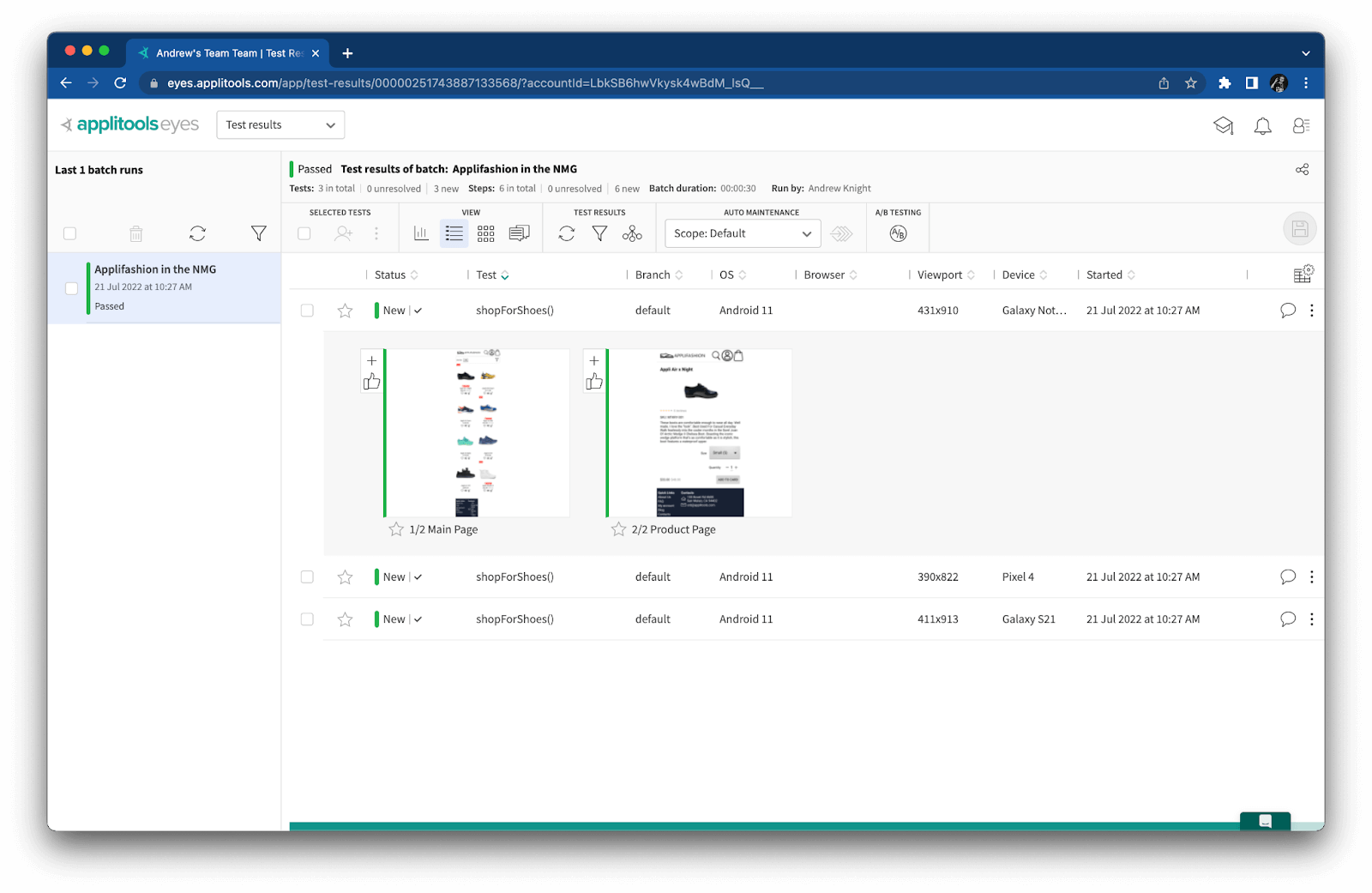
Native mobile screens don't expose a DOM the way a webpage does. Because Contrast Advisor measures the rendered pixels, it checks native mobile the same way it checks web.
Only visible elements
Elements hidden behind a modal or off-screen aren't counted, so you don't get flagged for a contrast issue no user will ever see.
Built into Eyes checkpoints
Enable Contrast Advisor and review flagged elements in the same Eyes dashboard you already use. No separate report to check.
See the exact ratio
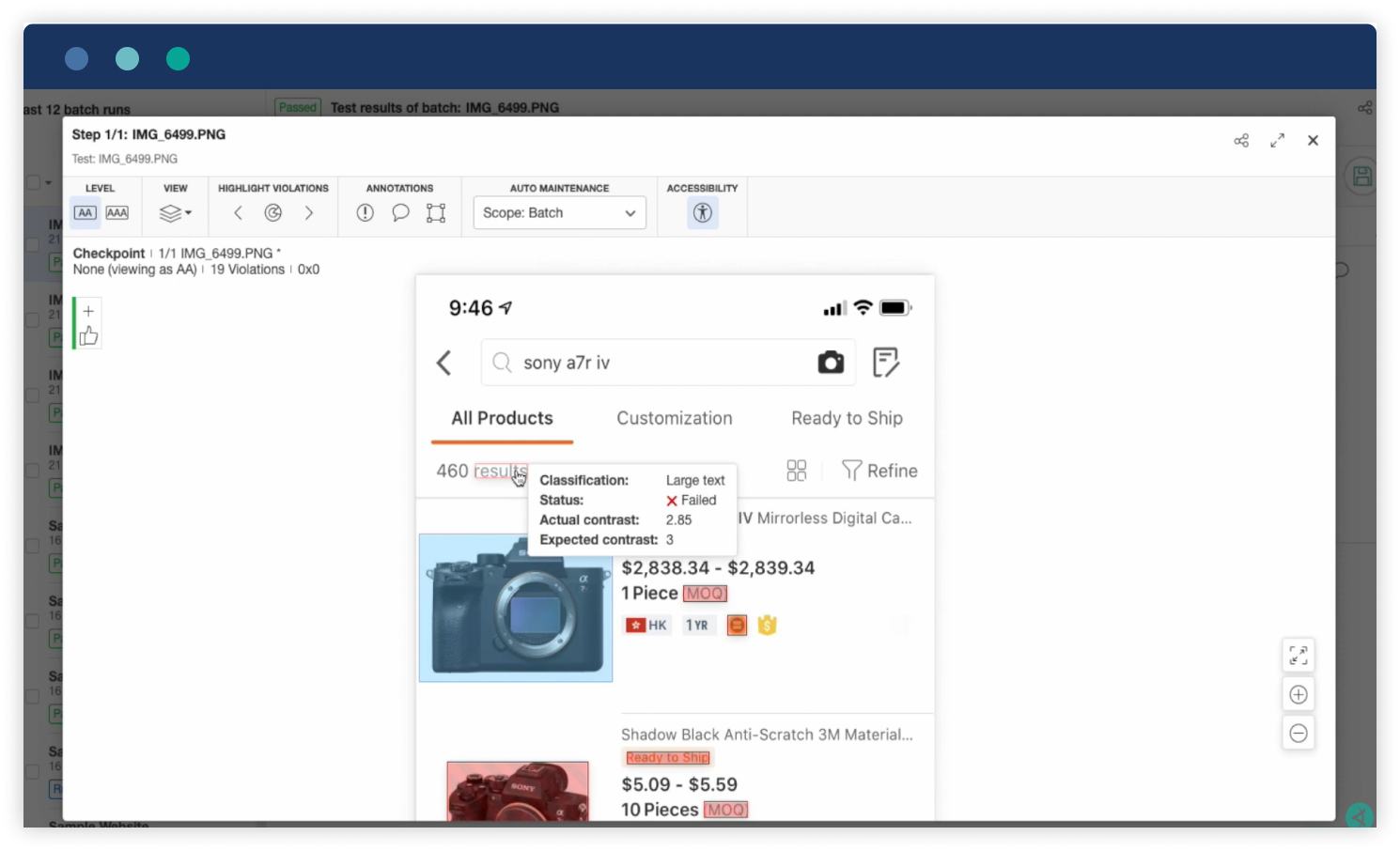
Hover over a flagged element to see its measured contrast ratio next to the minimum required for the standard you chose.
Visual comparisons run locally within your environment. Page snapshots are never sent to an external model or used for training.
Contrast Advisor runs inside your existing Eyes tests, so you don't need a separate accessibility tool or a new workflow.
Extend the same approach to native iOS and Android apps, rendered across real device and OS combinations.
The same element, standard, and level always produce the same measured ratio, so a result is something you can trust, not a rendering fluke.
Measure contrast across web, mobile web, native mobile, and PDF documents, so a violation doesn't slip through in a format a DOM-based tool can't reach.
See the exact element and measured ratio behind a flagged violation, so you know precisely what to fix.